
How to Fix Mouse Scroll Wheel Problems Without Replacing Your Mouse

A mouse scroll wheel looks like a small part, but it can ruin your whole workflow when it starts acting up. One minute you scroll down a page, then the screen jumps back up. Or the wheel feels sticky, skips lines, scrolls too fast, or stops working in certain apps.
The good news is simple: many mouse scroll wheel problems do not mean your mouse is dead. In many cases, dust, weak batteries, odd Windows settings, or old mouse software cause the issue. So, before you buy a new mouse, try a few quick fixes first.
This guide walks through the most common mouse wheel problems and shows you how to fix them step by step.
Common mouse scroll wheel problems
Scroll wheel issues usually show up in clear ways. You may notice one problem, or you may get a mix of several.
Common signs include:
- The mouse wheel scrolls up when you scroll down.
- Pages jump while scrolling.
- The wheel feels sticky or rough.
- Scrolling works in one app but not another.
- The mouse scroll wheel is too sensitive.
- The wheel turns, but nothing moves on the screen.
- Middle click does not work.
- A wireless mouse scroll wheel stops after sleep mode.
- A gaming mouse scroll wheel skips steps.
- The page keeps moving after you stop scrolling.
From real use, jumpy scrolling is the most annoying one. It feels random, and it makes reading, editing, gaming, and browsing harder than it should be. Most of the time, dirt around the wheel or a worn scroll sensor causes it.
Start with the quick checks first
Before you clean or open anything, test the easy stuff. These checks only take a few minutes, and they often fix the problem.
Try this first:
- Unplug the mouse and plug it back in.
- Use another USB port.
- Restart the computer.
- Test the mouse on another device.
- Replace the batteries in a wireless mouse.
- Charge the mouse fully.
- Turn Bluetooth off, then turn it back on.
- Remove the mouse from Bluetooth settings, then pair it again.
- Test scrolling in Chrome, Word, Excel, and File Explorer.
This helps you find the source of the problem. If the mouse scroll wheel fails on two devices, the mouse likely has a hardware fault. If it works fine on another device, your computer settings or software may be the real cause.
Clean the scroll wheel area
Dust, crumbs, hair, and skin oil can collect around the wheel. Over time, that buildup blocks smooth movement. Then the wheel skips, sticks, or scrolls in the wrong direction.
You will need:
- A microfiber cloth
- Cotton swabs
- Isopropyl alcohol, 70% or higher
- Compressed air
- A soft brush or toothpick
Turn the mouse off first. For a wired mouse, unplug it. For a wireless mouse, remove the battery or switch it off.
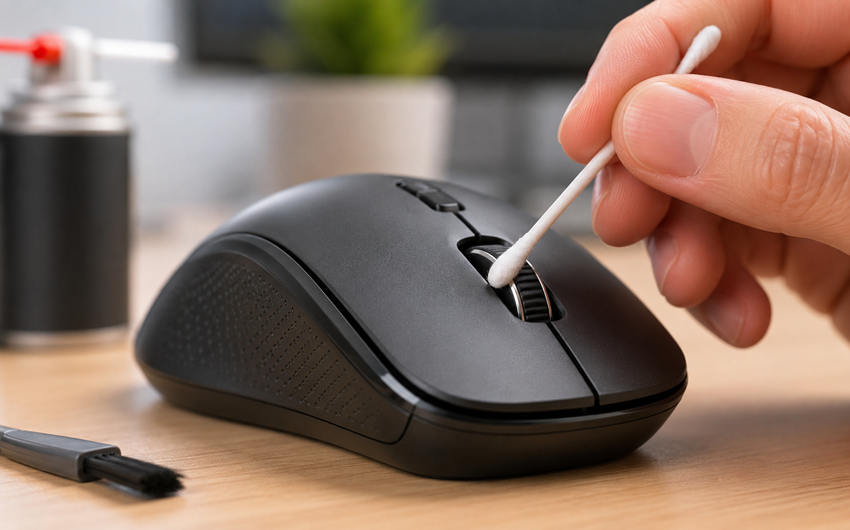
Blow short bursts of air around both sides of the wheel. Then roll the wheel forward and backward several times. Next, dip a cotton swab lightly in alcohol. It should feel damp, not wet. Clean the sides of the wheel and the small gap around it.
Let the mouse dry for 5 to 10 minutes. Then test it again.
Here is my honest opinion: compressed air helps, but it rarely fixes sticky grime by itself. A cotton swab does a better job. Take your time with this part. A rushed clean often leaves the same problem behind.
For a deeper step-by-step repair path, this full mouse scroll wheel troubleshooting guide explains the most common causes and fixes in more detail.
Adjust your Windows mouse settings
Sometimes the mouse feels broken, but Windows settings are the issue. A high scroll setting can make pages jump too far. A low setting can make the wheel feel weak or slow.
On Windows, open:
Settings > Bluetooth & devices > Mouse
Then check “Lines to scroll at a time.” Start with 3 lines. Test it in a browser, a folder, and a text document. If it still feels too fast, lower it. If it feels too slow, raise it one step at a time.
You should test “Scroll inactive windows” too. Turn it off for a few minutes and see how the mouse behaves. Some apps react badly to that feature, mostly after updates.
Check your mouse software
Many mice use their own control app. Logitech, Razer, SteelSeries, Corsair, and other brands let you change scroll speed, wheel mode, button mapping, and app profiles.
Open your mouse software and check:
- Scroll speed
- Smooth scrolling
- Free-spin mode
- Ratchet mode
- Middle-click action
- App profiles
- Firmware updates
Gaming mice can act differently in each profile. One profile may work fine on the desktop, then another profile may break scrolling in a game. So, check the profile tied to the app where the problem appears.
Some Logitech mice have SmartShift or free-spin scrolling. This can make the page keep moving after a light scroll. If that feels wrong, switch to ratchet mode for more control.
Reinstall the mouse driver
A mouse driver can get stuck after a Windows update, app install, or device change. Reinstalling it gives Windows a clean start.
Follow these steps:
- Right-click Start.
- Open Device Manager.
- Expand “Mice and other pointing devices.”
- Right-click your mouse.
- Select “Uninstall device.”
- Restart the computer.
Windows will reinstall the mouse after restart. Then test the scroll wheel again.
For a branded mouse, install the latest official app from the maker’s website. Do not download mouse drivers from random sites. They can create more problems than they solve.
Fix scroll wheel problems in Chrome, Edge, or Firefox
At times, the mouse works fine in Windows but scrolls badly inside a browser. Extensions, browser settings, and heavy pages can cause that.
Try these fixes:
- Open a private window and test scrolling.
- Disable browser extensions for a quick test.
- Clear the browser cache.
- Turn smooth scrolling on or off.
- Close heavy tabs.
- Update the browser.
- Restart the browser.
A bad webpage can cause poor scrolling too. Test several pages before blaming the mouse. Try a long article, a settings page, and a plain search results page.
Fix scroll issues in Excel, Word, and work apps
Some apps treat the scroll wheel in special ways. Excel can feel strange when Scroll Lock is active. Design tools may use the wheel for zoom. Large documents can lag during scrolling.
Check these things:
- Turn Scroll Lock off.
- Test a new blank file.
- Close large files and try again.
- Reset app preferences.
- Check zoom settings.
- Check shortcut settings.
- Update the app.
If the scroll wheel works in your browser but not in Excel, Word, Figma, Photoshop, or AutoCAD, the app settings deserve a closer look.
Fix a wireless mouse scroll wheel
Wireless mice can fail for different reasons. Low battery power can cause missed scroll steps. A weak Bluetooth link can add lag. A USB receiver placed near other devices can pick up interference.
Try this:
- Replace the battery.
- Charge the mouse fully.
- Move the receiver to a front USB port.
- Use a short USB extension cable.
- Keep the receiver away from USB 3.0 drives.
- Remove the mouse from Bluetooth, then pair it again.
- Test the mouse closer to the computer.
This matters a lot with compact wireless mice and gaming mice. A weak signal can make the wheel feel faulty, even when the hardware still works.
Check for a worn scroll wheel encoder
The scroll wheel encoder reads the movement of the wheel. After heavy use, this part can wear out. Dirt can make it worse.
A worn encoder often causes these signs:
- The page jumps up and down.
- One scroll notch moves in the wrong direction.
- Cleaning helps for a short time, then the issue returns.
- The wheel feels normal, but scrolling still skips.
- The same issue appears on more than one computer.
At this point, the mouse may need internal repair. Some people open the mouse and clean the encoder with contact cleaner. Others replace the encoder. This repair needs small tools and a steady hand.
For a cheap office mouse, replacement usually makes more sense. For a pricey gaming mouse or productivity mouse, repair can be worth it.
Fix middle-click problems
The scroll wheel often works as a middle button too. That button can fail even when scrolling still works.
Try these checks:
- Open your mouse software.
- Set the wheel button back to “Middle click.”
- Test middle click on a browser tab.
- Clean around the wheel.
- Press the wheel straight down.
- Test the mouse on another computer.
If the middle click still fails, the switch under the wheel may be worn. Cleaning can help with dirt, but a worn switch often needs replacement.
Check touchpad and mouse conflicts
Laptop users can run into a different issue. The touchpad and mouse can conflict, mainly after sleep mode or driver updates.
Try this:
- Disable the touchpad for a test.
- Update the touchpad driver.
- Restart the laptop with the mouse connected.
- Check gesture settings.
- Turn off reverse scrolling on the touchpad.
On Mac, check the “Natural scrolling” setting. It can reverse the direction of the scroll wheel and make a normal mouse feel wrong.
Clean your mouse the safe way
Do not pour alcohol into the mouse. Do not spray cleaner straight into the wheel. Do not use water. Liquid can reach the circuit board and damage the mouse.
Use a small amount of alcohol on a cotton swab. Keep the mouse tilted or upside down during light cleaning. This helps keep liquid away from the inside.
Do not force the wheel either. A hard push can break the wheel axle or damage the middle-click switch.
When should you replace the mouse?
Some scroll wheel problems keep coming back. That usually points to worn hardware.
Replace the mouse if:
- The scroll wheel fails on more than one computer.
- The wheel feels loose or cracked.
- Middle click no longer works.
- The mouse double-clicks by itself.
- The battery no longer holds a good charge.
- Repair parts cost almost as much as a new mouse.
A basic mouse is not always worth repairing. A premium mouse is different. If the sensor, buttons, and battery still work well, a scroll wheel repair may save money.
How to prevent scroll wheel problems
Good desk habits can help your mouse last longer.
- Keep food away from the mouse.
- Clean the mouse once a month.
- Wash your hands before long work sessions.
- Use a mouse pad.
- Keep the mouse away from pet hair.
- Store a travel mouse in a small pouch.
- Avoid pressing the wheel too hard.
- Update mouse software from time to time.
Small cleaning sessions work better than waiting until the wheel starts skipping. This applies to office mice, gaming mice, Bluetooth mice, and budget wireless mice.
Final thoughts
A bad scroll wheel can make simple tasks feel irritating. Start with the basics: clean the wheel, check the battery, adjust Windows settings, and test the mouse on another device.
If the wheel still jumps, skips, or scrolls the wrong way after cleaning and driver checks, the encoder may be worn. In that case, repair or replacement becomes the better choice.
Most users do not need a new mouse right away. A careful clean and a few setting changes fix many scroll wheel problems.